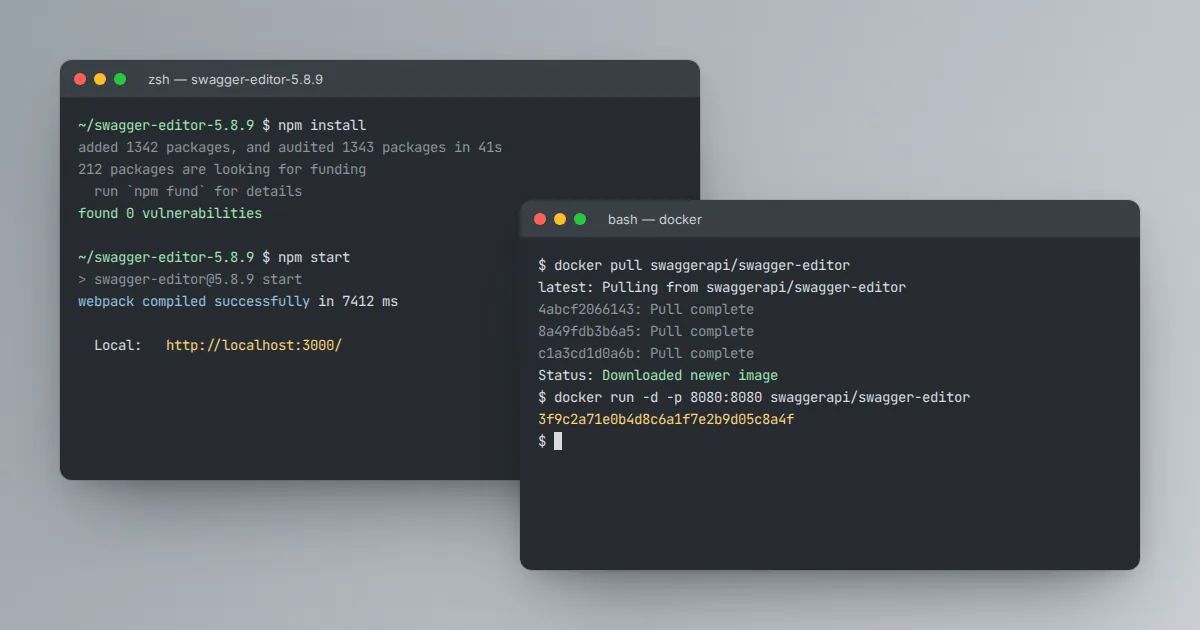
The hosted version is convenient, but many teams prefer to run Swagger Editor locally. Your API description never leaves your machine, it works without an internet connection, and you can pin a version so everyone on the team sees the same behavior.
There are three common ways to set it up.
Option 1: the release ZIP
Download the latest release archive from the download section on our homepage. It is the official source package published by the project on GitHub.
Unzip it, open a terminal in the extracted folder and install the dependencies:
cd swagger-editor-5.8.9
npm install
npm start
The development server prints a local address, usually on port 3000. Open it in your browser and the editor loads with a sample description.
You need a recent long-term-support release of Node.js and npm installed first.
Option 2: Docker
Docker is the cleanest option if you do not want Node.js on your machine. The project publishes an official image:
docker pull swaggerapi/swagger-editor
docker run -d -p 8080:8080 swaggerapi/swagger-editor
Visit http://localhost:8080 and the editor is ready. To load your own file at start-up, mount it into the container and point the editor at it with an environment variable such as SWAGGER_FILE.
Check the image documentation for the exact variable names supported by the tag you pull, since they can differ between major versions.
Option 3: npm package inside your app
If you want to embed the editor inside an internal tool, install it as a dependency and mount it into a page element. This is the route for teams building a custom API portal where the editor sits next to their own navigation, login and review workflow.
npm install swagger-editorCommon problems and fixes
- Port already in use. Another service holds the port. Stop it, or map a different host port in Docker, for example
-p 9090:8080. - npm install fails. Your Node.js version is probably too old. Upgrade to the current LTS release and delete
node_modulesbefore trying again. - Blank page. Open the browser console. A blocked script or a browser extension is the usual cause; try a private window.
- Work disappears after refresh. The editor keeps your text in browser storage. Clearing site data wipes it, so save files with the File menu regularly.