What Is Swagger Editor and Why API Teams Use It
A plain-language look at the browser-based OpenAPI editor: what it does, who it is for and where it fits in an API workflow.
Read fullSwagger Editor is a free, open-source tool for writing OpenAPI descriptions in YAML or JSON.
Type your API contract on one side, watch interactive documentation render on the other, and catch every mistake the moment you make it.
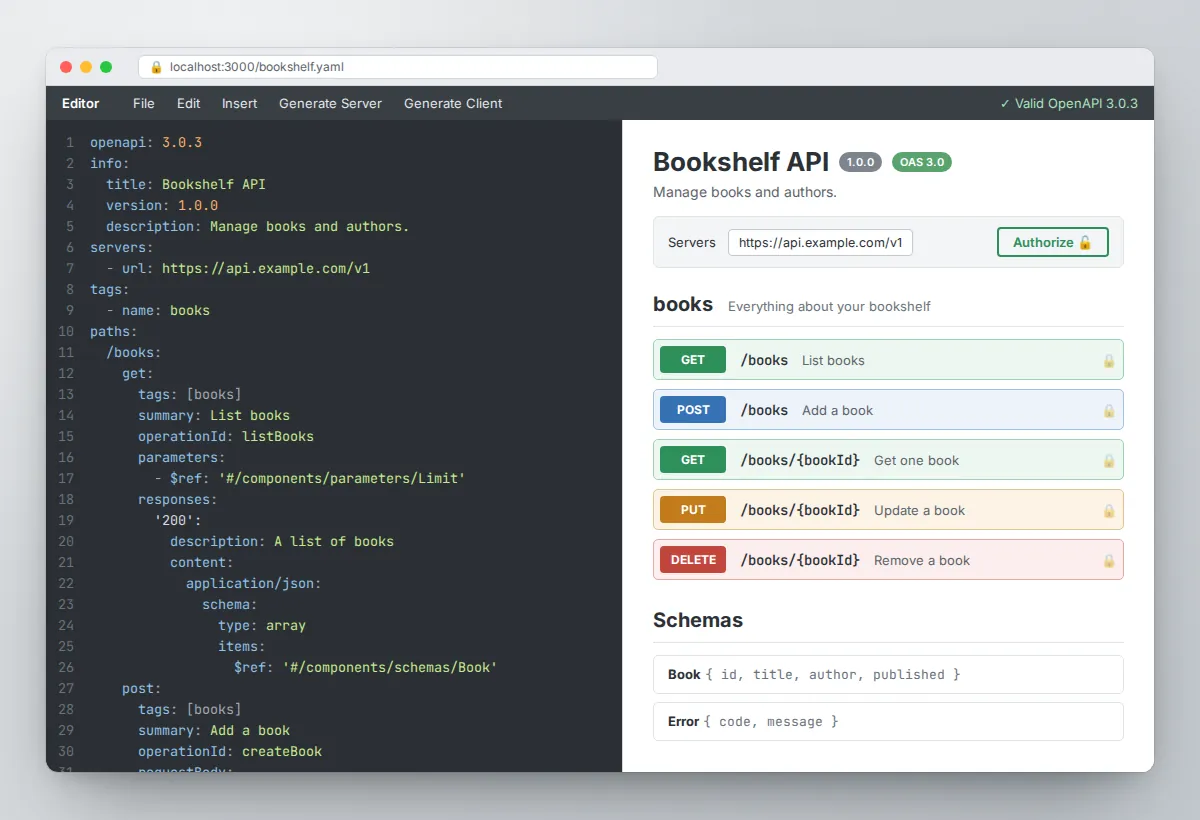
One window for writing an API contract, checking it and seeing what your users will see.
Every modern API needs a contract: a precise description of its endpoints, parameters, request bodies, responses and authentication. The OpenAPI Specification is the industry standard for that contract, and Swagger Editor is one of the most widely used tools for writing it.
It runs in the browser, so there is nothing to configure before you start typing.
The layout mirrors the job. On the left is a code editor tuned for OpenAPI, with syntax highlighting, keyword completion and error markers in the gutter.
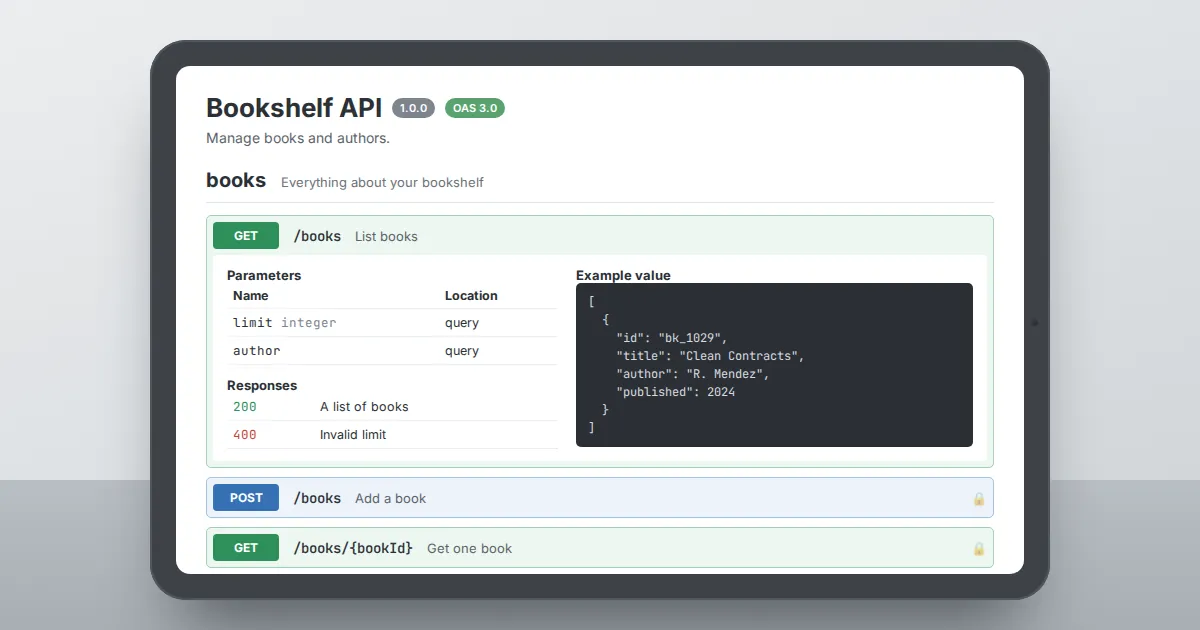
On the right is a live preview built on Swagger UI, showing each operation grouped by tag, with schemas, examples and response codes laid out the way an API consumer will read them.
Because validation runs while you type, problems surface in seconds. A response without a description, a path parameter that is not marked as required or a reference to a schema that does not exist all show up immediately, with a line number and a path into the document.
That fast loop is what makes the editor useful for design-first teams, who agree on the contract before writing any server code.
When the description is ready, the same file feeds documentation portals, mock servers, test suites, API gateways and code generators. Writing it well in Swagger Editor pays off at every step that follows, which is why it remains a default starting point for API work.
Not a long checklist. These are the parts of the editor you will actually lean on.
Your document is checked against the OpenAPI schema on every change. Errors and warnings point to the exact line and object path, so fixes take seconds.
The right pane renders full documentation as you type: operations, parameters, schemas and example payloads, exactly as readers will see them.
Point the description at a server and send live requests from the preview, including authorized calls using API keys, bearer tokens or OAuth 2.0.
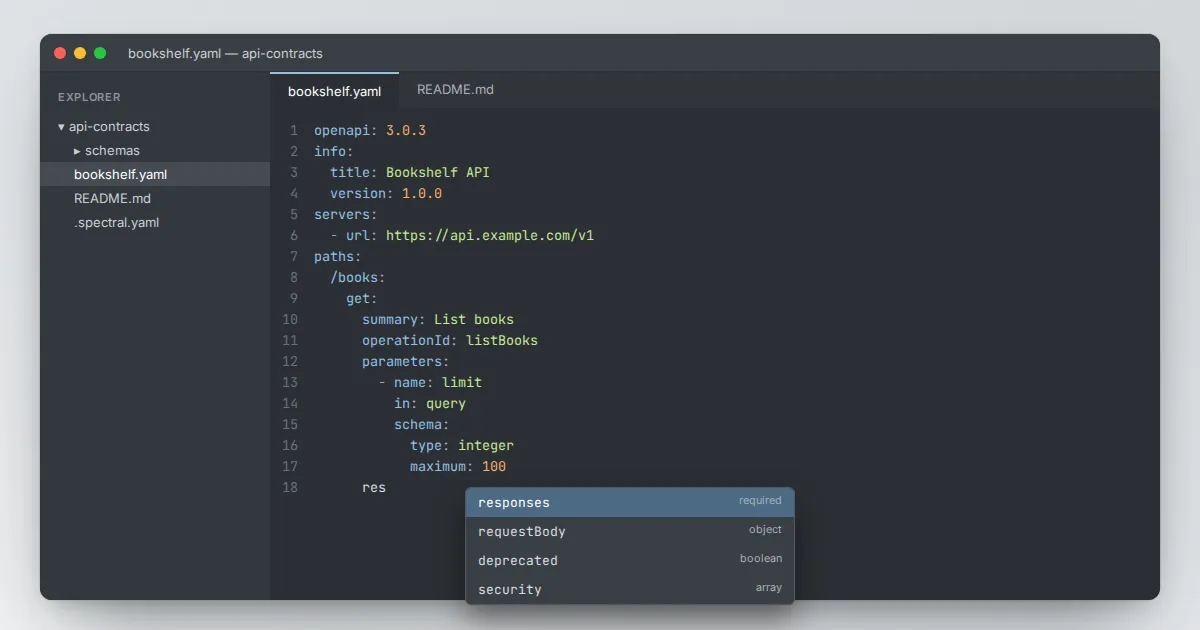
The editor suggests valid keywords for the current position, which helps when you cannot remember whether a field belongs on the operation or the response.
Write in YAML or JSON, paste either one, and save the result in whichever format your toolchain expects.
Use it online, download the release, run the Docker image or embed the npm package in your own internal developer portal.
Four steps take you from an empty file to a contract your whole team can rely on.
Declare the OpenAPI version, give the API a title and version, and list the servers where it will live.
Add paths and methods with parameters, request bodies and responses. The preview grows with every block you add.
Work through the validation panel from top to bottom until the document is clean and every reference resolves.
Save the file to version control, then feed it to documentation, mocks, tests and code generators.
The loop between those steps is short on purpose. Because the preview redraws instantly, you can try an idea, look at how it reads to a consumer and undo it in the same minute.
Teams often run review sessions with the editor on a shared screen: one person types, everyone else reads the rendered documentation and points out names that feel unclear, responses that are missing or examples that would confuse a newcomer.
It also helps to keep each change small. Add one operation, clear its errors, then move on.
A long description built this way stays valid at every step, which means you can commit it at any moment, open a pull request early and let reviewers comment on the contract long before a single line of server code has been written.
Version 5 of Swagger Editor reads the formats most teams use today, from legacy Swagger files to event-driven APIs.
| Specification | Status | Good to know |
|---|---|---|
| OpenAPI 3.1 | supported | Full JSON Schema alignment, type arrays instead of nullable, and webhooks. |
| OpenAPI 3.0.x | supported | The most widely deployed version; safest choice when older tools are in your pipeline. |
| OpenAPI 2.0 (Swagger 2.0) | supported | Ideal for maintaining or migrating older API descriptions. |
| AsyncAPI 2.x | supported | Describe message-driven APIs such as Kafka, MQTT or WebSocket channels. |
Not sure which version to write? Start with OpenAPI 3.0.3 if any tool in your chain is older, otherwise choose 3.1. Our migration guide explains the differences in detail.
The same editor serves very different roles on an API team.
Draft and review a contract before any code exists, so frontend and backend developers can build in parallel against an agreed interface.
Document an existing service accurately, verify it against the specification and hand a clean file to the people who consume the API.
Polish summaries, descriptions and examples in Markdown, and check how they render before publishing them in a developer portal.
Read the contract to plan tests, configure gateways and mock servers, and catch breaking changes before they reach production.
Practical walkthroughs written for people who want to get real work done. Start with these three, then explore the full library.
A plain-language look at the browser-based OpenAPI editor: what it does, who it is for and where it fits in an API workflow.
Read fullThree reliable ways to run the editor on your own machine, with the commands you need and fixes for the usual snags.
Read fullStart from an empty file and build a small but complete API description, one block at a time, with the preview updating as you go.
Read fullPick the setup that matches how private your API description is and how your team works.
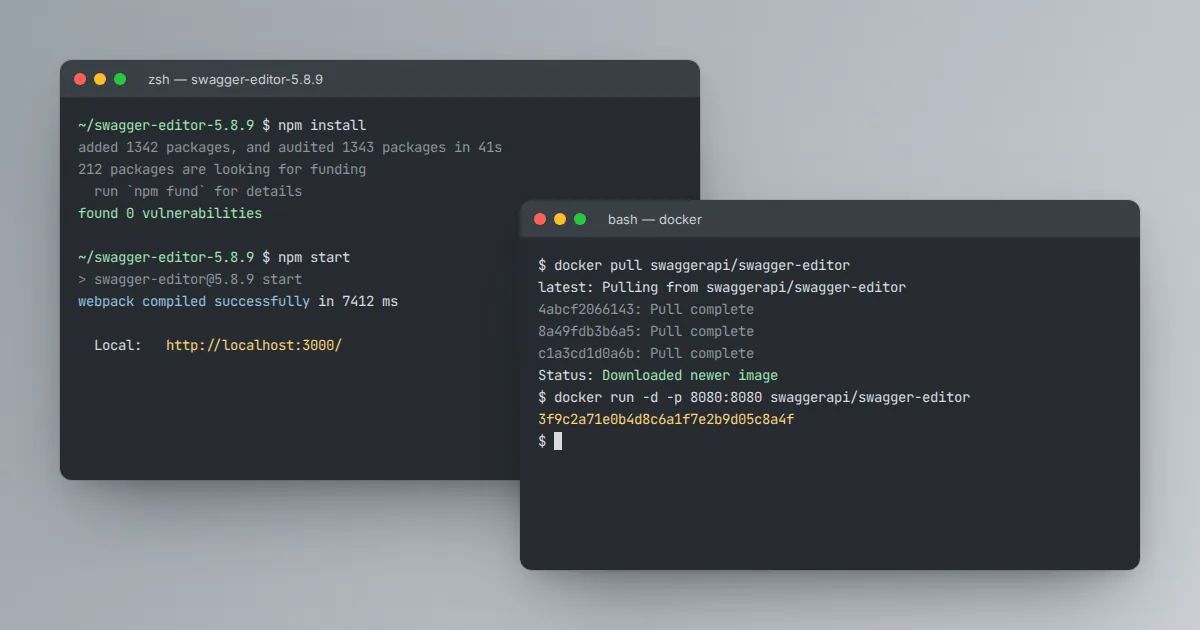
Download the archive above, extract it, install dependencies and start the local server. Everything stays on your machine.
npm install
npm startNo Node.js required. Pull the official image and map a port, then open the editor in your browser.
docker pull swaggerapi/swagger-editor
docker run -d -p 8080:8080 swaggerapi/swagger-editorEmbed the editor inside an internal portal or review tool, next to your own login and navigation.
npm install swagger-editorFor quick experiments with non-sensitive files, the hosted editor needs no setup at all. Avoid pasting private or production API details into any shared service.
Need more detail? The local installation guide covers each option and common fixes.
Whichever route you choose, pin the version you use. Different releases can render or validate edge cases slightly differently, and a team where everyone runs the same build avoids the classic situation where a file is valid on one laptop and broken on another.
Record the version in your repository's readme or in a Docker tag, and upgrade deliberately when a new release adds something you need. Keeping your API descriptions in Git next to the code also means every change to the contract gets the same review, history and rollback options as the rest of your project.
Three tools share the Swagger name and are often confused. Each handles a different stage of the same file's life.
| Tool | Main job | Input | Output |
|---|---|---|---|
| Swagger Editor | Write and validate the API description | Your typing, YAML or JSON | A clean OpenAPI file plus a live preview |
| Swagger UI | Publish interactive documentation | A finished OpenAPI file | A documentation page with Try it out |
| Swagger Codegen | Generate code | A finished OpenAPI file | Client SDKs and server stubs |
In practice they form a pipeline: you write the contract in the editor, publish it with the UI and generate clients and servers with Codegen or OpenAPI Generator.
Short answers to the questions people ask most before they download.
Yes. Swagger Editor is open source and released under the Apache 2.0 license.
You can use the hosted version, download the source, run it in Docker or embed it in your own tools at no cost, including for commercial work.
Version 5 of the editor supports OpenAPI 2.0 (formerly Swagger 2.0), OpenAPI 3.0.x and OpenAPI 3.1. It also understands AsyncAPI 2.x documents for event-driven and message-based APIs.
Not if you run it locally. Once you download the release and install its dependencies, or pull the Docker image, the editor runs fully offline on your own machine.
The editor keeps the current document in your browser's local storage so it survives a page refresh. That is not a backup.
Use the File menu to save YAML or JSON files and keep them in version control.
The download button points to the official release archive published by the Swagger Editor project on GitHub. This website is an independent guide and is not run by SmartBear.
Yes. Paste or type JSON and the editor validates and renders it just like YAML. You can also save the current document in either format.
Swagger UI only displays an API description as interactive documentation. Swagger Editor includes that same preview but adds a code pane where you write and validate the description.
Depending on the version and setup, the editor offers generate menus for server stubs and client SDKs. For private APIs, running Swagger Codegen or OpenAPI Generator locally keeps your description off third-party services.
Yes. If your description lists a server URL, the preview sends real HTTP requests from your browser. The target server must allow cross-origin requests, and you should use test credentials only.
Validation checks structure, not meaning. YAML may read unquoted values such as yes or 1.10 as a boolean or number. Quote such values and review the rendered preview carefully.